Splunk Runkey Persistence Detection Lab
Splunk Registry Run Key Persistence Detection Lab
Detecting Windows Autorun Persistence Using Sysmon Event ID 13
Overview
This project documents a hands-on SOC detection lab focused on identifying Windows persistence mechanisms using Sysmon registry monitoring and Splunk.
The objective of the lab was to understand how attackers maintain access to compromised systems after initial compromise by abusing Windows autorun registry keys.
Using Splunk Enterprise and Sysmon telemetry, I investigated:
- Windows registry persistence
- Autorun registry keys
- Suspicious PowerShell persistence
- Sysmon Event ID 13
- Registry modification monitoring
- Persistence detection workflows
This lab introduced one of the most important concepts in SOC analysis and threat hunting:
Persistence
Persistence allows attackers to survive reboots and regain access to systems after initial compromise.
Lab Environment
Virtual Machines Used
| Machine | Purpose |
|---|---|
| Ubuntu VM | Splunk Enterprise Server |
| Windows VM | Endpoint telemetry source |
| Kali Linux VM | Additional SOC lab environment |
Technologies Used
| Tool | Purpose |
|---|---|
| Splunk Enterprise | SIEM and log analysis |
| Sysmon | Endpoint telemetry collection |
| Splunk Universal Forwarder | Windows log forwarding |
| Windows Registry | Persistence mechanism |
| CMD | Registry modification execution |
| reg.exe | Registry editing utility |
Understanding Persistence
Up to this point, my investigations focused on:
- Process execution
- PowerShell activity
- Process spawning
- Network communication
- Event correlation
This lab introduced a different question:
“How does an attacker remain on the machine after initial access?”
The answer is:
Persistence
Persistence mechanisms allow malware or attackers to:
- Survive system reboots
- Automatically execute malicious payloads
- Re-establish command-and-control access
- Maintain long-term access to compromised systems
This is one of the most critical areas of SOC analysis.
Understanding Registry Run Keys
Windows autorun registry keys are locations that automatically execute programs when users log in.
One commonly abused location is:
HKCU\Software\Microsoft\Windows\CurrentVersion\Run
Programs configured in this location execute automatically during user login.
Legitimate software frequently uses Run keys for:
- Cloud synchronization services
- Backup applications
- Security software
- Communication applications
- System utilities
Examples include:
- Microsoft OneDrive
- Google Drive
- Dropbox
- Antivirus software
Because Run keys are commonly used by legitimate software, attackers abuse them to blend malicious activity into normal system behavior.
Why Run Keys Are Dangerous
Run keys are dangerous because they can create persistence on a compromised system.
Attackers use persistence to:
- Sustain access after compromise
- Maintain command-and-control communication
- Re-establish access after reboots
- Execute malicious payloads repeatedly
- Avoid losing access to the system
This makes persistence one of the most important stages in attacker operations.
LAB — Registry Run Key Persistence
Objective
The objective of this lab was to simulate a common Windows persistence technique involving registry autorun keys.
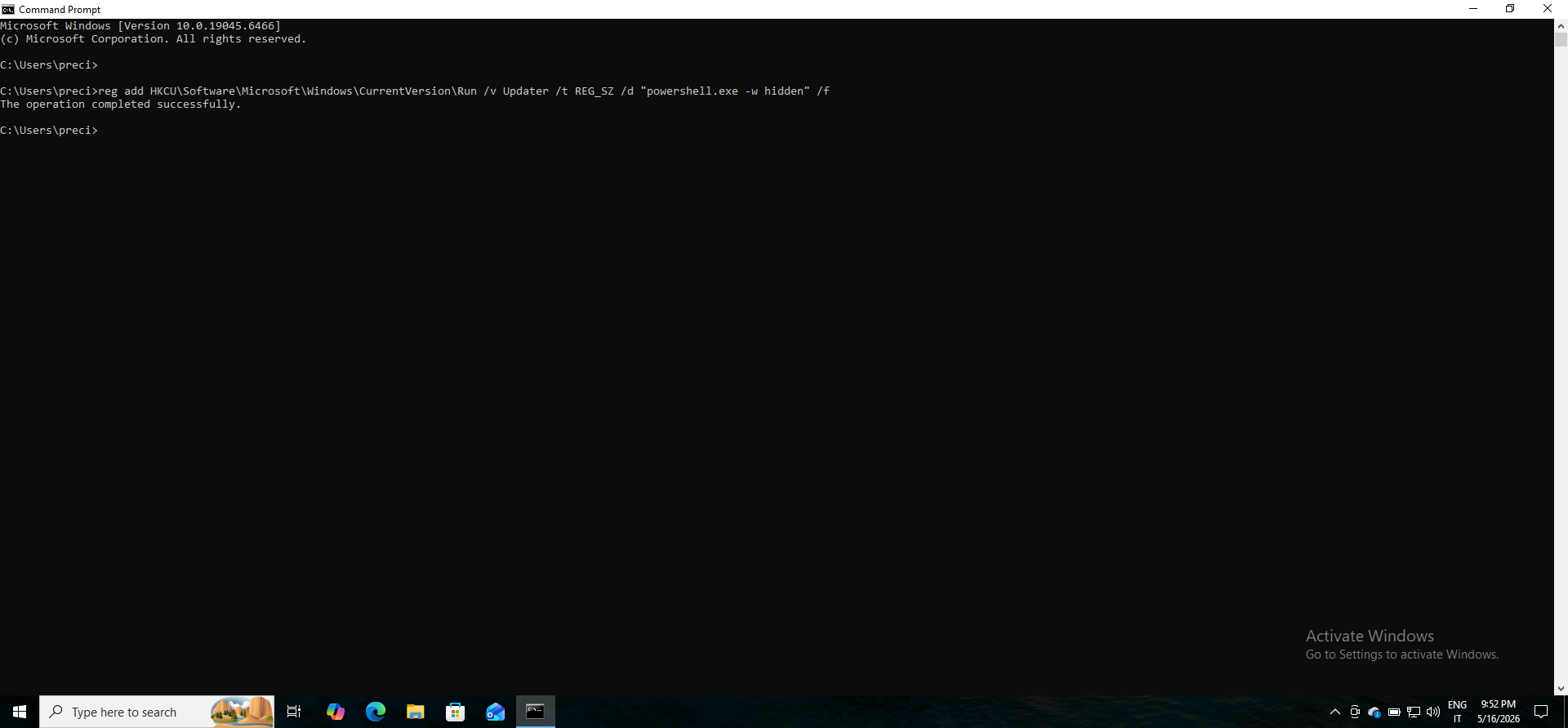
The following command was executed:
reg add HKCU\Software\Microsoft\Windows\CurrentVersion\Run /v Updater /t REG_SZ /d "powershell.exe -w hidden" /f
What This Command Does
This command creates a registry autorun entry named:
Updater
inside:
HKCU\Software\Microsoft\Windows\CurrentVersion\Run
The payload configured to execute is:
powershell.exe -w hidden
This means PowerShell will execute automatically when the user logs in.
Screenshot 1 — Registry Persistence Command Execution
Why This Persistence Method Is Suspicious
Several indicators make this activity suspicious:
- PowerShell configured in autorun
- Hidden PowerShell execution
- Abuse of a common persistence location
- User-level stealth persistence
- Scripting engine configured for automatic execution
PowerShell is a powerful scripting and automation framework capable of executing:
- Remote downloads
- Encoded commands
- Fileless malware
- Credential theft tools
- Command-and-control communication
Having PowerShell configured to execute automatically at login significantly increases the risk of persistent malicious activity.
Verifying Sysmon Registry Monitoring
Before generating persistence events, I verified that Sysmon registry monitoring was enabled.
SPL Query Used
index=wineventlog EventCode=13
| head 5
Successful results confirmed that registry event monitoring was functioning properly.
Sysmon Event ID 13 — Registry Modification Detection
Purpose
Sysmon Event ID 13 records registry value modifications.
This allows analysts to identify:
- Persistence creation
- Autorun modifications
- Malware registry activity
- Suspicious registry changes
- Registry-based attacker techniques
SPL Query Used
index=wineventlog EventCode=13
| table _time Image TargetObject Details User
Targeted Persistence Hunt
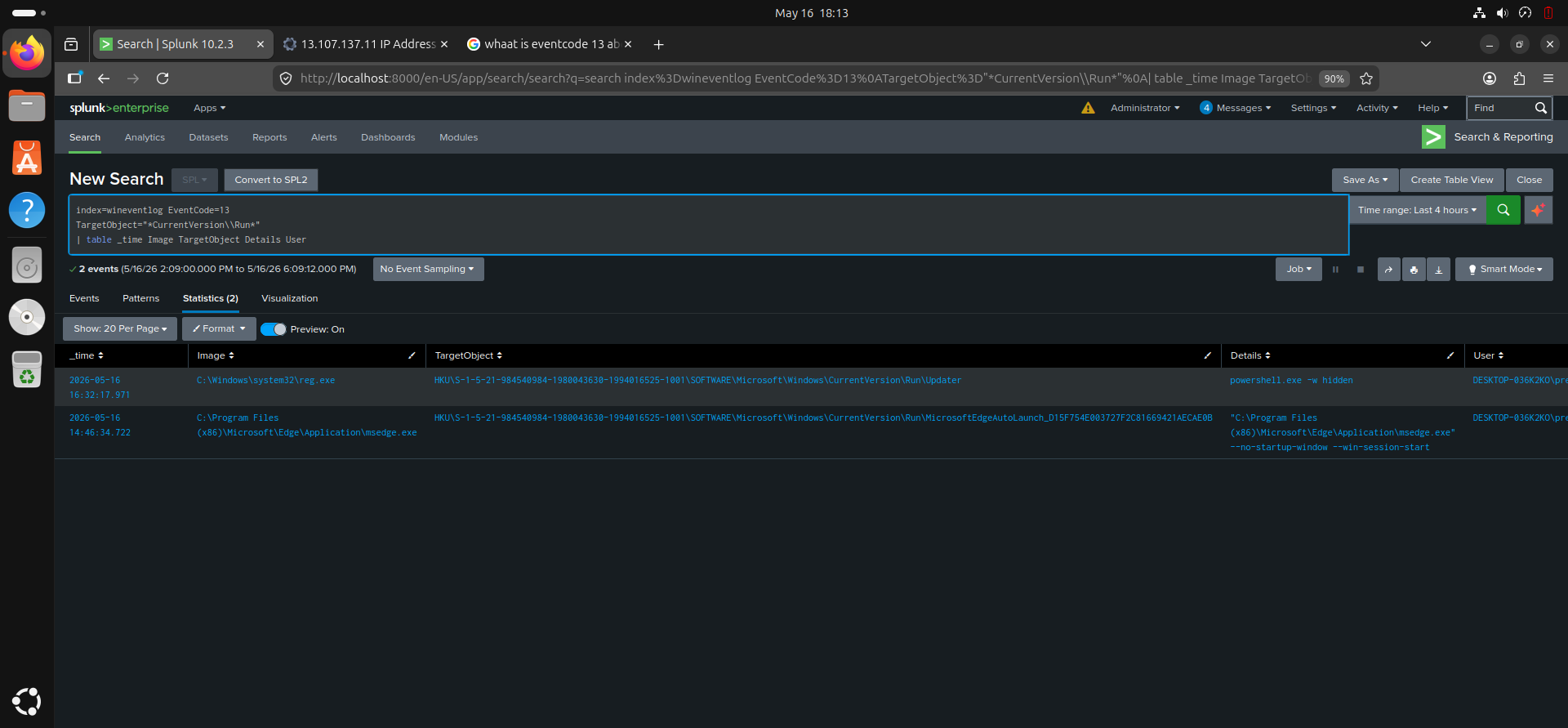
To specifically identify Run key persistence activity, I used:
index=wineventlog EventCode=13
TargetObject="*CurrentVersion\\Run*"
| table _time Image TargetObject Details User
Investigation Findings
The investigation revealed:
- Registry modification activity
- Autorun persistence creation
- PowerShell configured for automatic execution
- Hidden PowerShell execution flags
- Registry changes targeting Windows Run keys
The event showed:
Image
reg.exe
rather than:
powershell.exe
or:
cmd.exe
Why the Image Appeared as reg.exe
This behavior is expected.
The Sysmon Event ID 13 log records:
The process that directly modified the registry
In this case:
reg.exe
was the utility that performed the registry modification.
Even though the command was executed from CMD, CMD itself did not modify the registry.
Instead:
cmd.exe
      └── reg.exe
The registry modification was performed by reg.exe, so Sysmon recorded reg.exe as the Image responsible for the registry change.
The PowerShell payload:
powershell.exe -w hidden
appears inside:
Details
because it is the registry value being stored, not the process making the modification.
This distinction is extremely important during SOC investigations.
Screenshot 2 — Sysmon Event ID 13 Persistence Detection in Splunk
How Defenders Distinguish Benign vs Malicious Persistence
Defenders analyze several factors to determine whether persistence activity is suspicious.
These include:
- The process being configured for autorun
- Whether hidden execution flags are used
- Which user created the persistence
- The originating process
- The file path being executed
- Whether the payload makes outbound network connections
- Whether the process is signed or trusted
Legitimate software typically:
- Uses recognizable application names
- Executes from trusted locations
- Is digitally signed
- Does not use hidden PowerShell execution
Malicious persistence often includes:
- Hidden execution flags
- PowerShell or scripting engines
- Temporary or suspicious file paths
- Encoded commands
- External network communication
What Would Increase Severity Further
Several factors would increase the severity of this persistence event:
- Outbound network communication after execution
- Connections to suspicious external IP addresses
- Encoded PowerShell commands
- Execution from suspicious directories
- Additional persistence mechanisms
- Credential dumping behavior
- Fileless execution techniques
- Multiple persistence entries created simultaneously
Persistence combined with command-and-control communication is a high-priority SOC investigation scenario.
Skills and Knowledge Gained
Through this project, I gained practical experience in:
- Windows persistence detection
- Sysmon Event ID 13 analysis
- Registry monitoring
- Autorun persistence investigation
- PowerShell persistence analysis
- Splunk SPL searches
- Threat hunting concepts
- SOC investigation workflows
Detection Relevance
Registry Run key monitoring is highly valuable because persistence is one of the most common attacker objectives after compromise.
Monitoring registry modifications helps defenders identify:
- Malware persistence
- Unauthorized startup entries
- PowerShell abuse
- Registry-based attacker techniques
- Long-term compromise attempts
Persistence detection is a core SOC analyst skill.
Challenges Encountered
Some challenges encountered during the lab included:
- Understanding registry event logging
- Interpreting Sysmon Event ID 13 fields
- Understanding why reg.exe appeared as the Image
- Distinguishing legitimate vs suspicious autoruns
- Understanding persistence behavior
Resolving these challenges improved my understanding of Windows persistence mechanisms and SOC investigation workflows.
Future Improvements
Future improvements planned for this lab include:
- Detecting additional persistence mechanisms
- Investigating scheduled task persistence
- Monitoring startup folder abuse
- Detecting encoded PowerShell persistence
- Correlating persistence with outbound network activity
- Creating persistence detection dashboards in Splunk
Conclusion
This lab improved my understanding of how attackers establish persistence on Windows systems and how SOC analysts detect persistence activity using Splunk and Sysmon.
By analyzing registry modifications and autorun entries, I gained practical experience in:
- Persistence detection
- Registry monitoring
- Sysmon Event ID 13 analysis
- Threat hunting concepts
- PowerShell persistence investigation
- SOC investigation workflows
This project strengthened my understanding of how defenders identify suspicious persistence mechanisms used by attackers to maintain long-term access to compromised systems.
Author
Precious Anyanwu
| Cybersecurity Learner | SOC Analyst Path | Splunk SIEM Practice |